Hello All,
Greetings, and welcome to the PowerShell Hub.
In today’s article, we will explore PnP PowerShell, a powerful tool that simplifies the management and automation of Microsoft 365 environments (SharePoint, Teams, Exchange Online, Microsoft Purview, Microsoft Search, Microsoft Entra, Microsoft Power Platform and other related services).
We will discuss its features, benefits, and common use cases to help you get started.
What is PnP PowerShell?
- PnP PowerShell is cross platform PowerShell module.
- Cross platform means PnP PowerShell CMDLETs run across Windows, Linux and Mac platform.
- PnP PowerShell provides around more than 700+ PowerShell CMDLETs.
- These PnP PowerShell CMDLETs includes CMDLETs for Microsoft 365 services like SharePoint Online, Microsoft Teams, Exchange Online, Microsoft Purview, Microsoft Search, Microsoft Entra, Microsoft Power Platform.
How to start using PnP PowerShell?
- To start PnP PowerShell, install the PnP PowerShell module.
Prerequisite to Install PnP PowerShell Module
- PowerShell 7.4.0 or later.
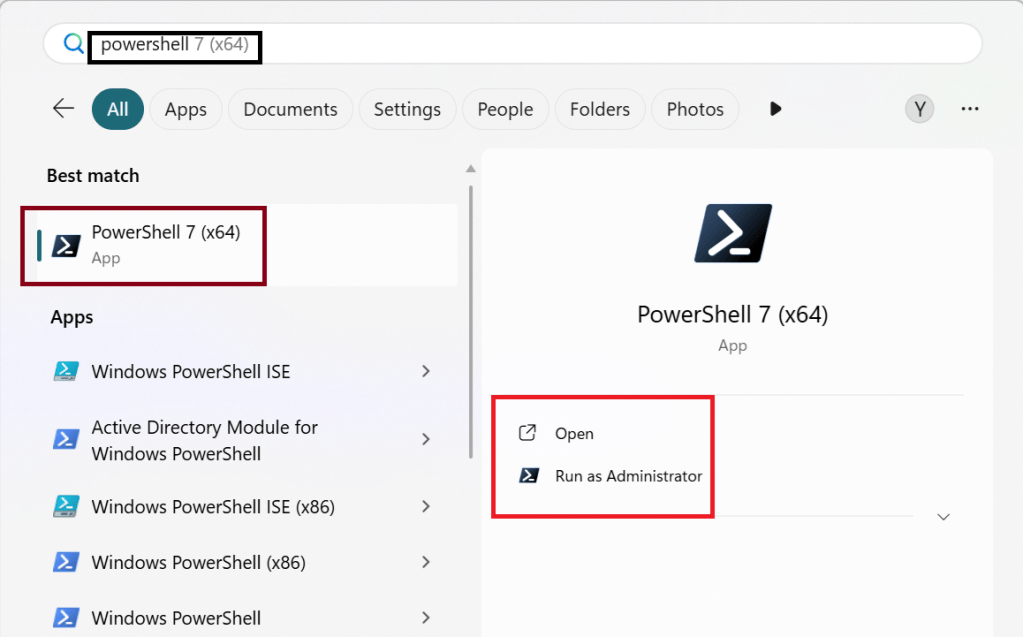

Installing PnP PowerShell Module
- To install PnP PowerShell module, download the PnP PowerShell module from PnP github.
- OR run the following command
Install-Module PnP.PowerShell
My first PnP PowerShell script?
- Upon successful installation of PnP PowerShell module, we are ready to execute PnP PowerShell CMDLETs.
- Before executing any PnP PowerShell CMDLET, we must first connect to target Microsoft 365 tenant.
- We will be connecting the Microsoft 365 tenant using CMDLET – Connect-PnPOnline.
- Connect-PnPOnline cmdlet requires following parameters
- URL – URL of the site to which we need to connect
- ClientId : Entra app
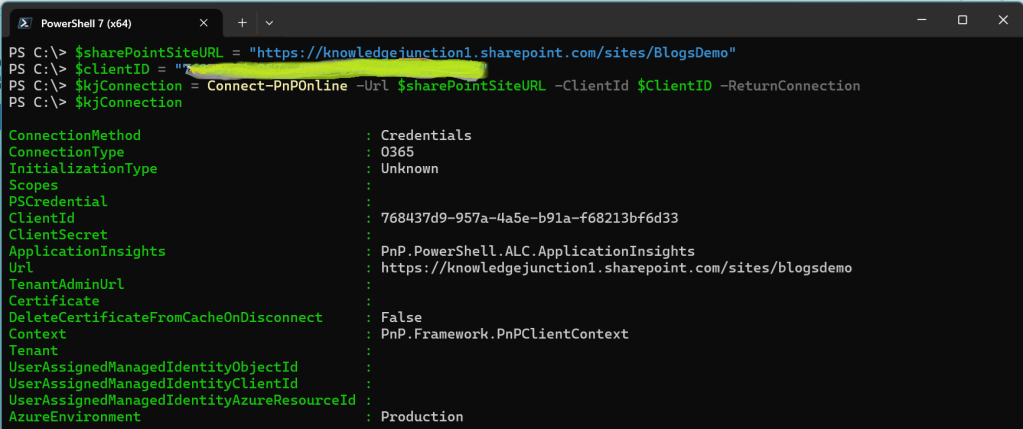
- Upon successfully connecting to the Microsoft 365 tenant, we are ready to execute PnP PowerShell CMDLETs.
- Example – To retrieve all Alerts from a SharePoint site, we will execute the following PnP CMDLET.
PS C:\> Get-PnPAlert
References
Thank you for reading.
Feel free to discuss about PowerShell.
Have a great time ahead ! LIFE IS BEAUTIFUL :)

