Hello All,
Greetings. Welcome to the PowerShell hub.
Today, I’m sharing a PowerShell script that demonstrates how to hide the search box from a SharePoint site navigation bar.
Background
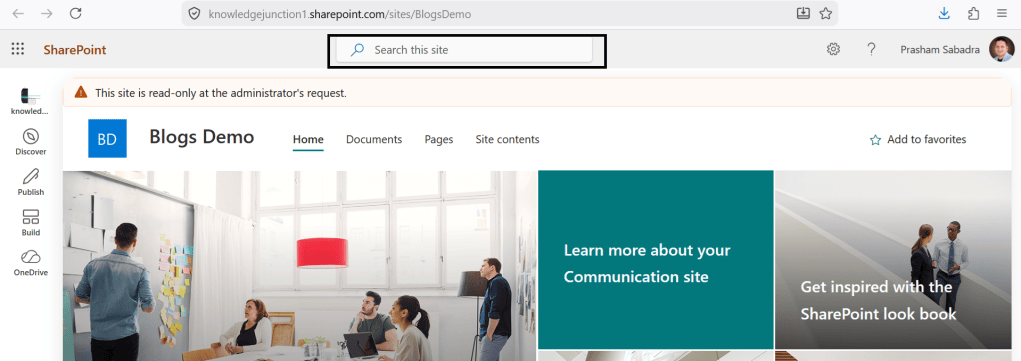
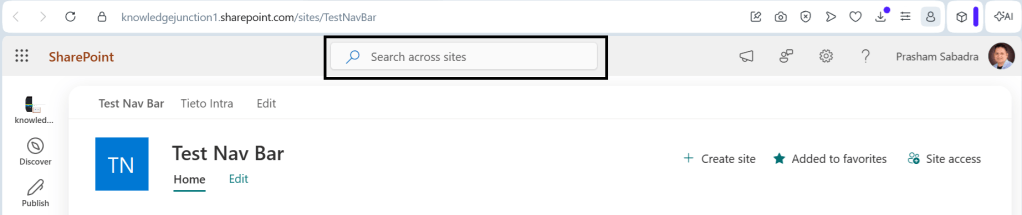
On our SharePoint site, we have the OOB SharePoint search box displayed by default.
Since our project uses a custom search solution, we need to hide the OOB search box to avoid confusion and provide a seamless user experience.
Steps to hide the OOB search box on a SharePoint site
- Here, we will use PnP PowerShell cmdlets
- Connect to the SharePoint site
- We will connect to the tenant using PnP PowerShell CMDLET – Connect-PnPOnline
- To connect to the tenant using Connect-PnPOnline we will require following values
- SharePoint site URL – site where we need to hide the OOB search box
- Application ID / Client ID – The Client ID of the Entra ID Application
- Certificate Path – Path to the certificate containing the private key (*.pfx)
- Certificate Password – Password for certificate
- Tenant ID
- Initialize the required variables
PowerShell
$SharePointSiteUrl = "https://knowledgejunction1.sharepoint.com/sites/TestNavBar"$ClientId = "<client id>>"$CertificatePath = "C:\Prasham\m365KJ.pfx"$CertificatePassword = "<certificate password>>"$CertificatePassword = (ConvertTo-SecureString -AsPlainText $CertificatePassword -Force)
- Using above variables, connect to the tenant using We will connect to the tenant using PnP PowerShell CMDLET – Connect-PnPOnline
PowerShell
Connect-PnPOnline -Url $SharePointSiteUrl -ClientId $ClientId -CertificatePath $CertificatePath -CertificatePassword $CertificatePassword -Tenant 'knowledgejunction1.onmicrosoft.com' -WarningAction Ignore
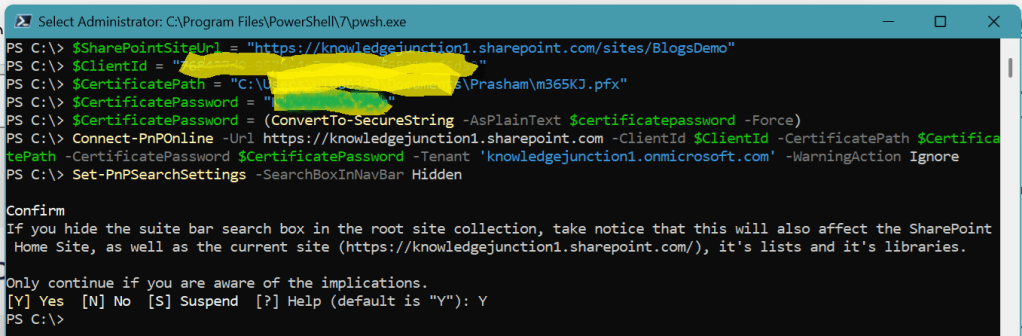
- Once we connected to SharePoint site, we will use Set-PnPSearchSettings PowerShell CMDLET to hide the search box in navigation bar
PowerShell
Set-PnPSearchSettings -SearchBoxInNavBar Hidden
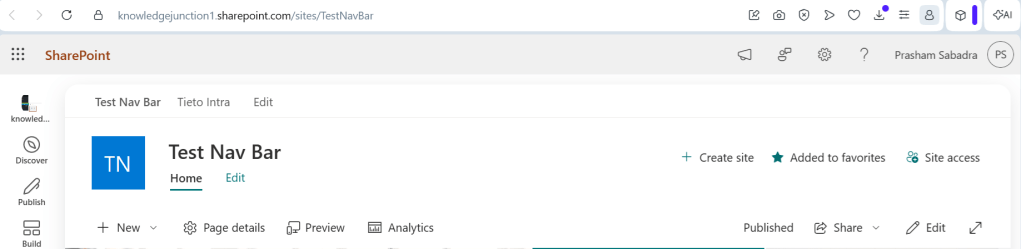
- Once script executed successfully refresh the page.
Complete script
PowerShell
$SharePointSiteUrl = "https://knowledgejunction1.sharepoint.com/sites/TestNavBar"$ClientId = "<client id>>"$CertificatePath = "C:\Prasham\m365KJ.pfx"$CertificatePassword = "<certificate password>>"Connect-PnPOnline -Url $SharePointSiteUrl -ClientId $ClientId -CertificatePath $CertificatePath -CertificatePassword $CertificatePassword -Tenant 'knowledgejunction1.onmicrosoft.com' -WarningAction IgnoreSet-PnPSearchSettings -SearchBoxInNavBar Hidden
References
Thank you for reading ! Have a great time ahead :)
Feel free to discuss anything about PowerShell scripts. HAPPY to HELP!

